 Premium HR
The complete Premium HR guide
Everything about our HR app for Odoo: what it does, how to get it, how your company subscribes and how to use every screen, step by step.


What is Premium HR?
Premium HR is a self-service app for employees and managers at companies that run Odoo. It connects directly to your company’s own Odoo, so every request made in the app appears in Odoo instantly, and every approval in Odoo reaches the app as a notification.
For employees
Clock in, request leave, submit expenses and approval requests, follow tasks and payslips.
For managers
Approve the team’s requests, assign tasks and follow the team from the phone.
For HR administrators
All data stays in Odoo, with full control over users, permissions and attendance rules.
Highlights
- Attendance with location, device and face verification
- Leave, expenses and approval requests with attachments
- Project tasks, timesheets and activities
- Meetings and payslips
- Push and email notifications
- Offline queue that syncs when you are back online
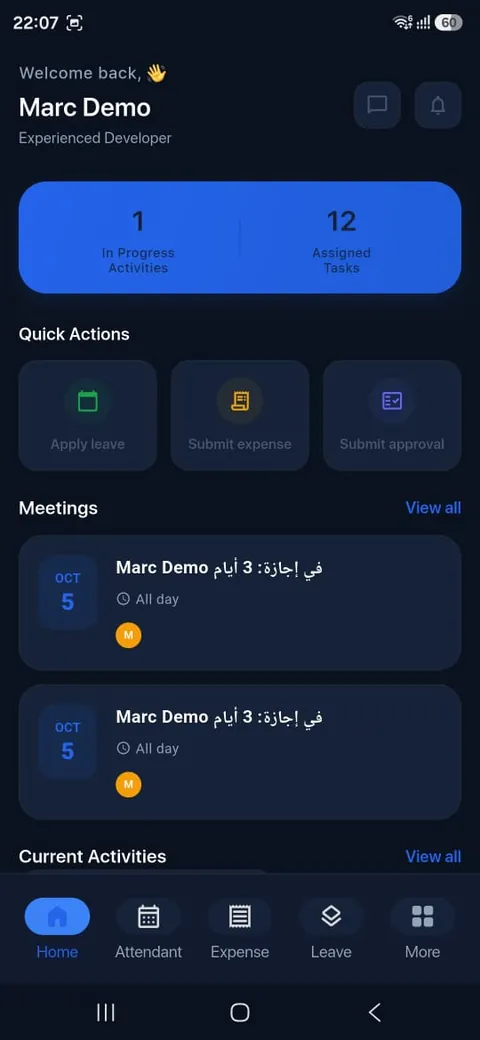
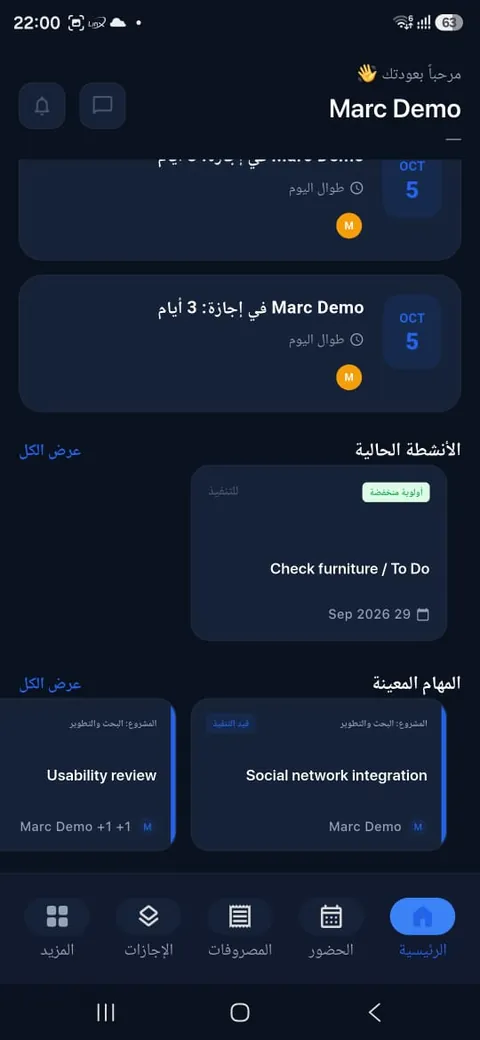
- Arabic and English, light and dark themes
- iOS, Android and web with one account
What you need: your company’s Odoo, a Premium HR subscription and our connector modules installed on the server. We can install and set everything up for you.
Download the app or use it in your browser
The app is free to download, and the same account works on every device.
How to request a subscription for your company
Premium HR is sold to companies, not to individuals. Your company subscribes once for its employees, then each employee signs in with their own account.
- Contact us. Send your company name, Odoo version and number of employees through the contact form or to sales@ptech.sh.
- Receive your subscription code. Once the subscription is confirmed, we send your company its subscription code.
- Connect your Odoo. Your administrator installs the connector modules and registers the server with the code, or we do it for you.
- Add your users. Create the employees’ accounts and set their permissions in Odoo (see Back-end setup).
- Start using it. Employees download the app and sign in.
Signing in for the first time
- System URL: your company’s Odoo address, for example https://yourcompany.com.
- Email address and password: the account your HR administrator created for you.
- Database (optional): leave it empty unless your company’s server has more than one database.
- Tick Save my details to sign in faster next time, then tap Log in.
- Forgot your password? Tap Forget password? on the sign-in screen, or contact your HR administrator.
Try it with demo data
https://demo.ptech.net.saHR_DEMOmanager@demo.ptech.shDemo@1234employee@demo.ptech.shDemo@1234Demo data is shared and may be reset at any time.
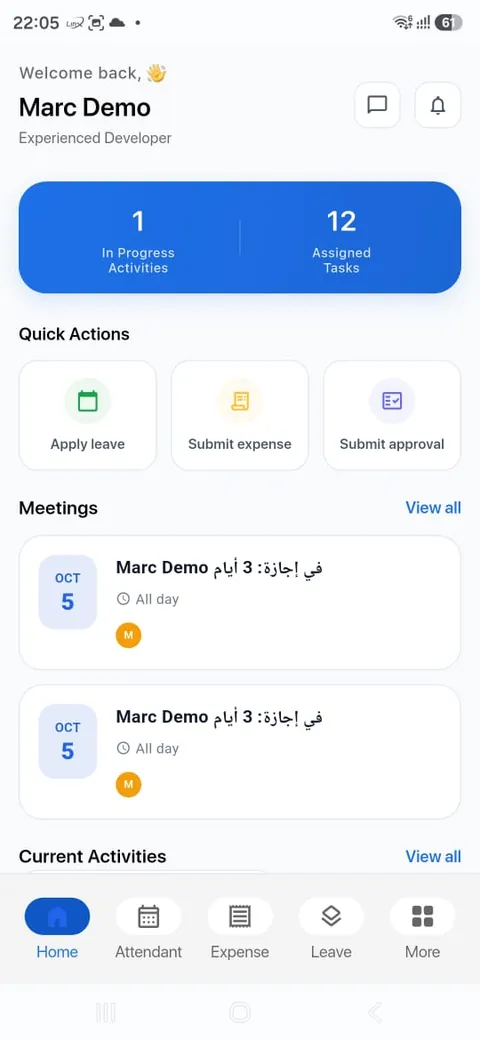
Home dashboard
Home is the first screen after you sign in. It shows what needs your attention today and gives you one-tap shortcuts to the most common requests.
- The welcome card shows your name and job title, with the number of activities in progress and tasks assigned to you.
- Use the Quick actions to apply for leave, submit an expense or submit an approval request without leaving Home.
- Meetings lists your upcoming meetings. Tap one to open it, or tap View all to see every meeting.
- Current activities and Assigned tasks show your open work. Tap any card to open its details.
- Tap the bell icon at the top to open your notifications, and the chat icon to open your messages.
Attendance: clock in and out
Record your working hours from your phone. The app checks that you are at an allowed work location before you clock in, and can also verify your device and your face.
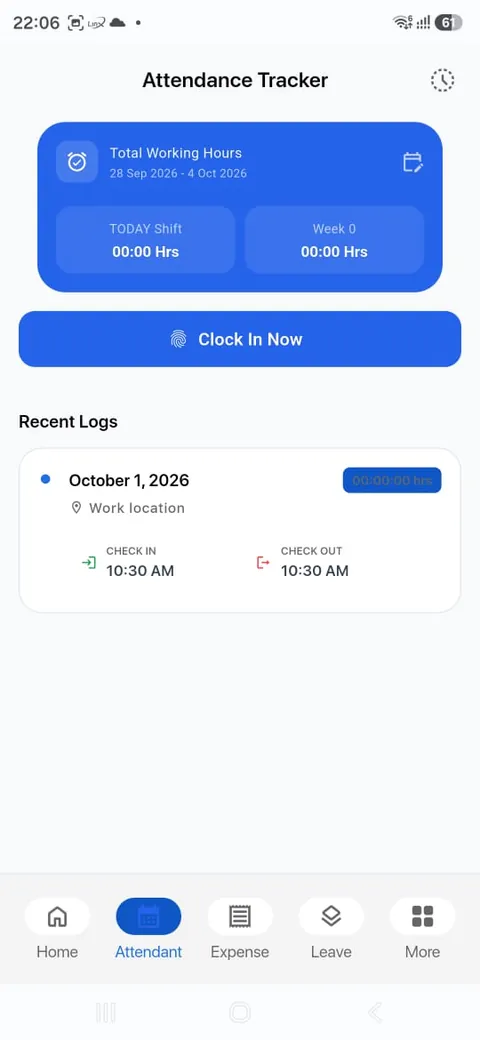
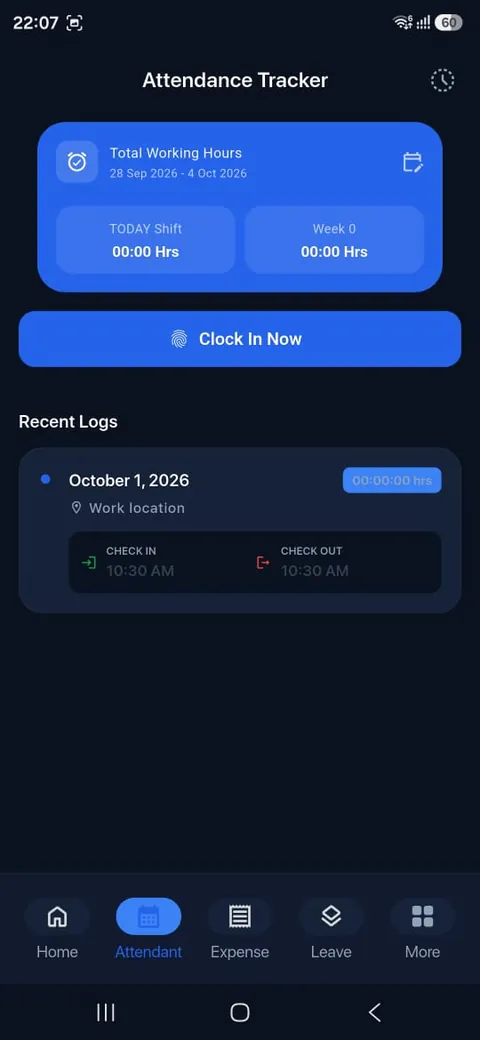
- Open the Attendance tab. The tracker card shows your total working hours for the selected period, today’s shift and this week.
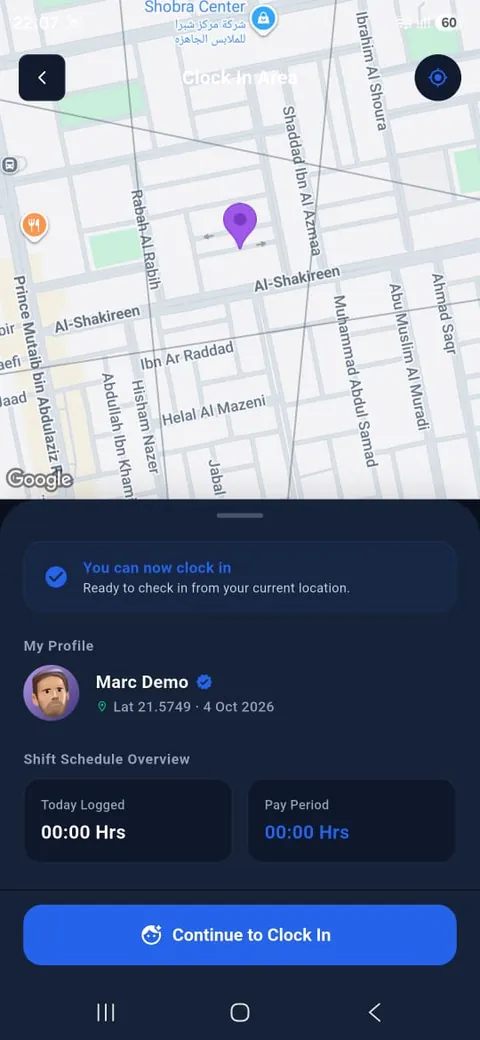
- Tap Clock In Now. A map opens with your current location.
- When you are inside your work location, the app shows “You can now clock in”, together with your profile, today’s logged hours and the pay period.
- Tap Continue to Clock In. Complete face verification if your company has enabled it.
- At the end of the day, open the Attendance tab again and clock out the same way.
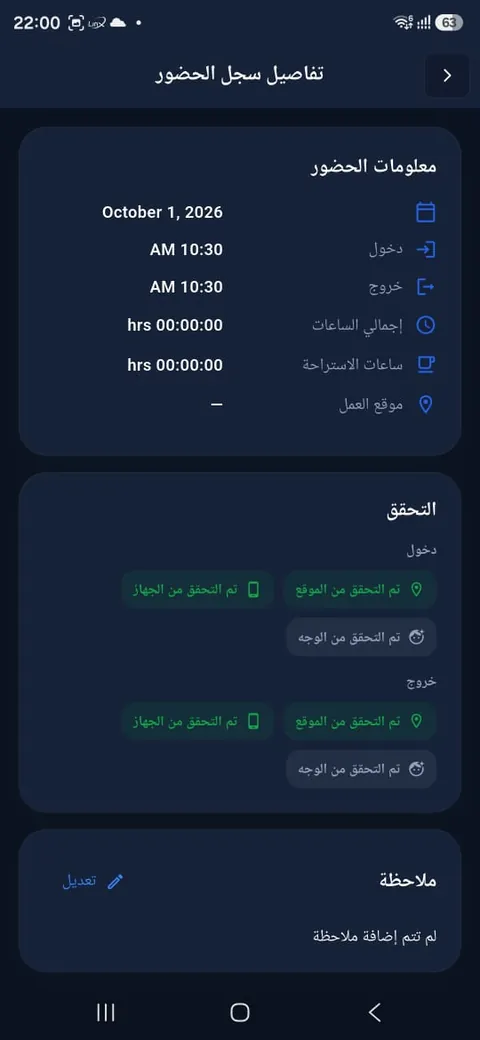
- Recent logs list each day’s check-in and check-out. Tap a log to see total hours, break hours, the work location and whether the location, device and face were verified. You can also add a note.
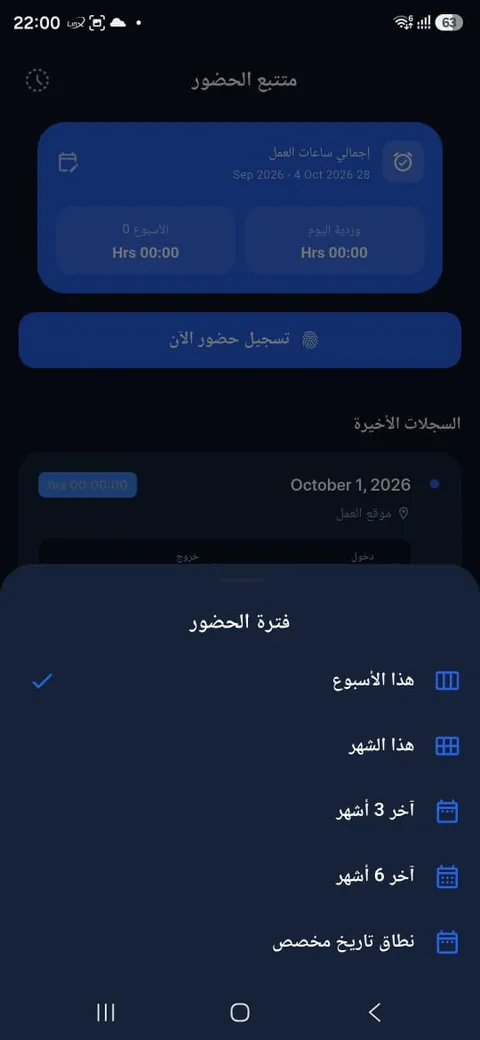
- Tap the calendar icon on the tracker card to switch the period: this week, this month, the last 3 or 6 months, or a custom date range.
Allow location access for the app, otherwise clock-in is blocked.
Your administrator defines the allowed work locations and verification rules in Odoo.
Leave requests
Check your leave balance, request time off and follow every request until it is approved.
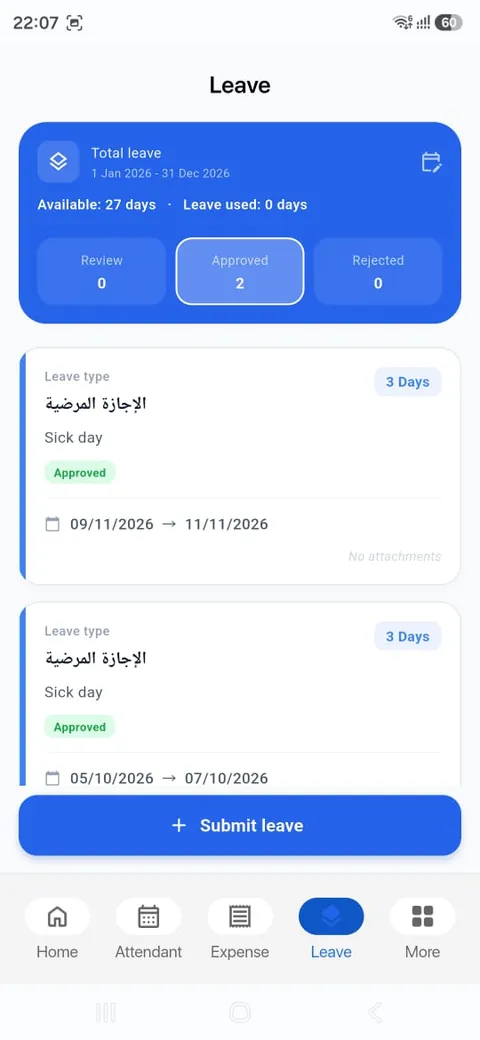
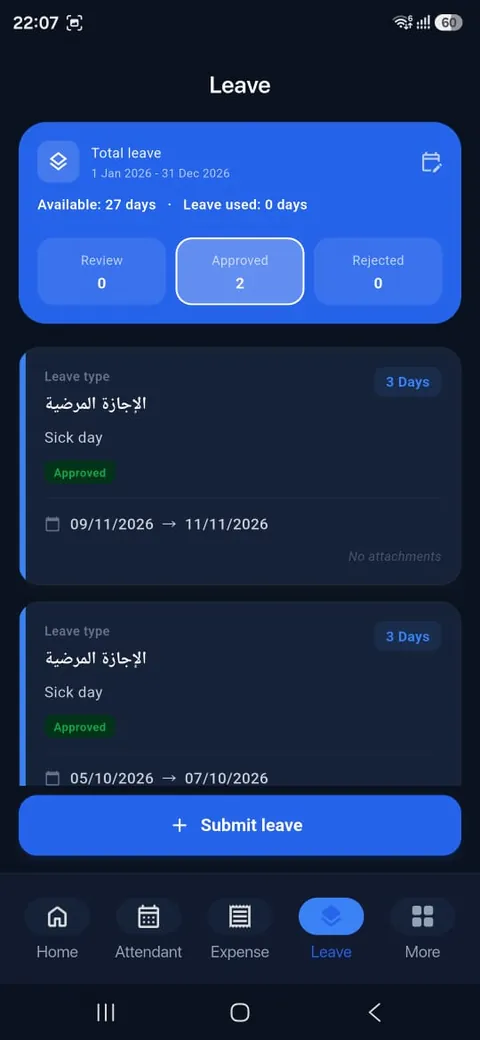
- Open the Leave tab. The summary card shows your total leave for the year, the days available and the days used.
- Tap Review, Approved or Rejected to filter your requests by status.
- Each request shows the leave type, number of days, reason, status and dates.
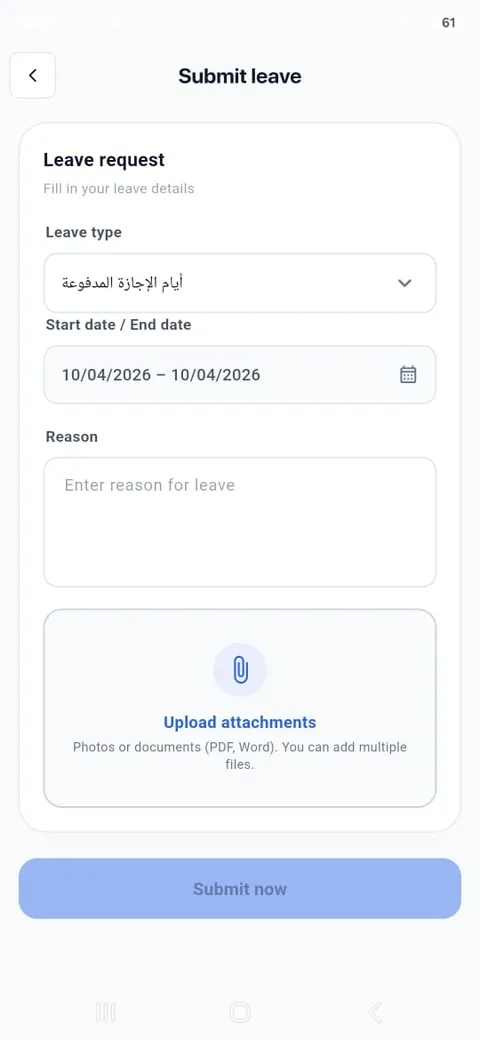
- To request leave, tap Submit leave. Choose the leave type, pick the start and end dates, write the reason and attach a medical report or other document if needed (photos, PDF or Word).
- Tap Submit now. The request goes to the approvers configured in Odoo.
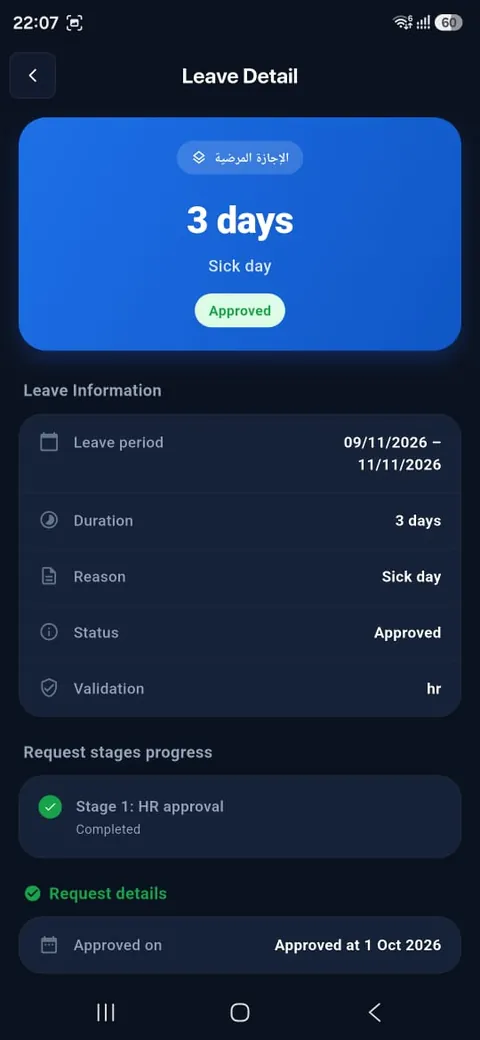
- Tap a request to see its details: leave period, duration, reason, status, who validates it and the progress of each approval stage.
Expense claims
Submit expenses with their receipts in seconds and track them through review and approval.
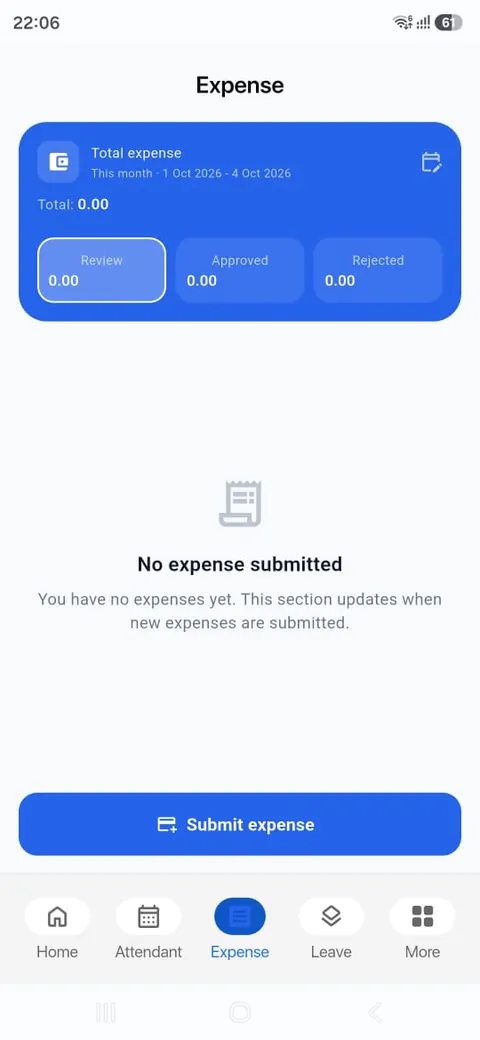
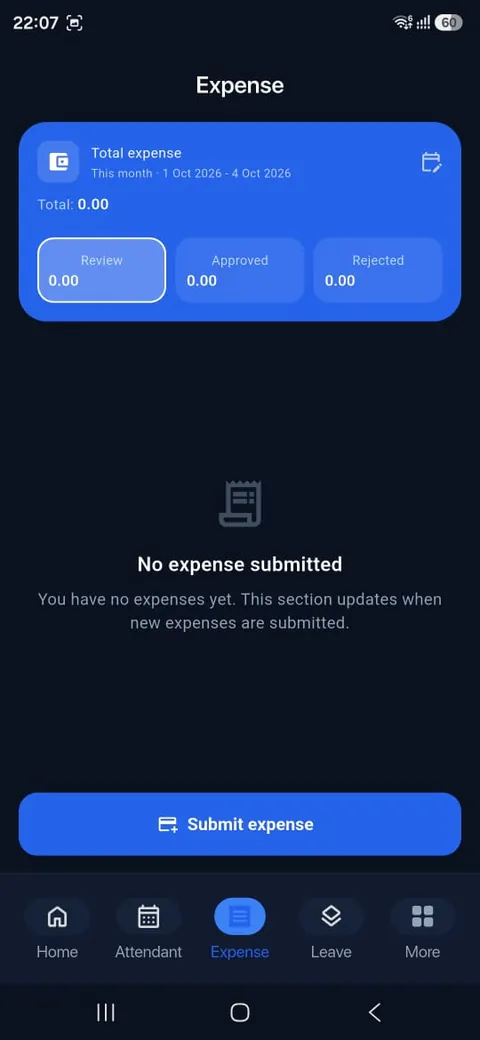
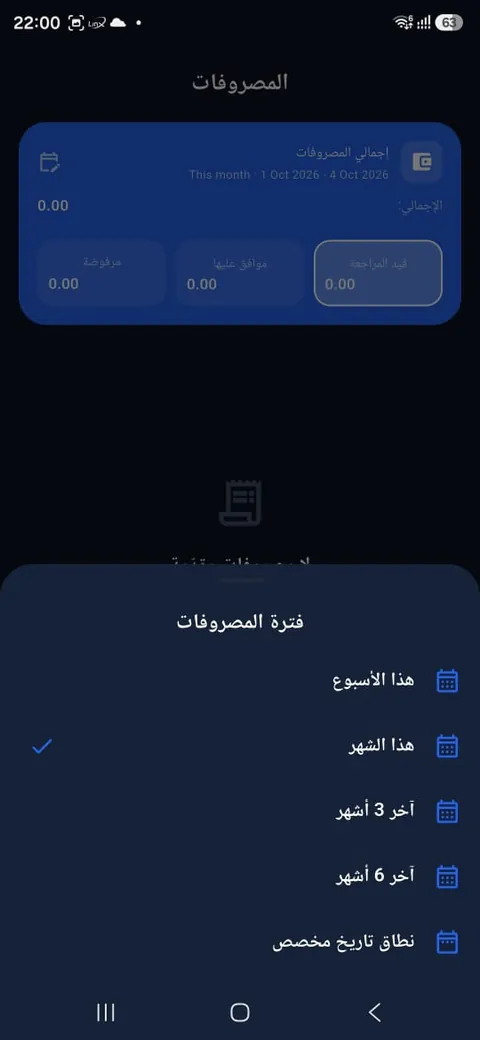
- Open the Expense tab. The summary card shows your total expenses for the period, split into in review, approved and rejected.
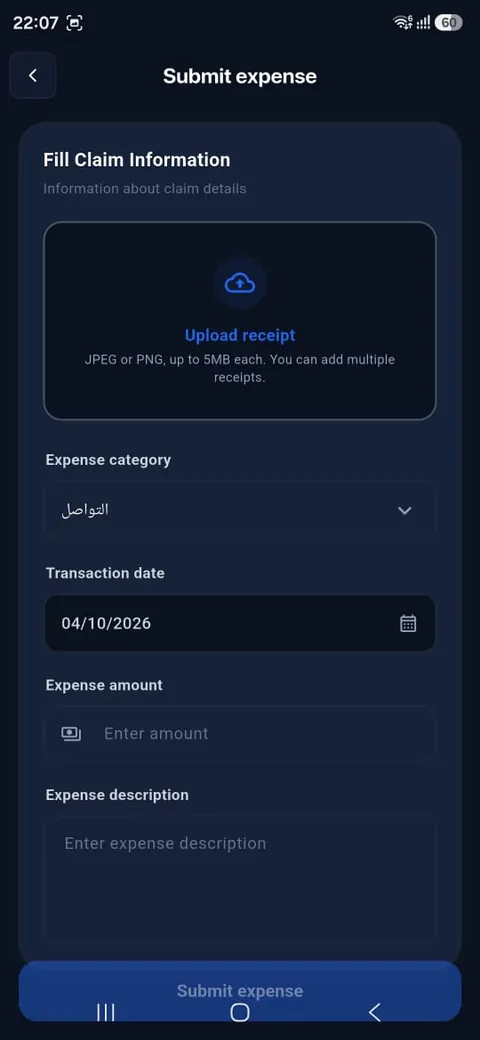
- Tap Submit expense.
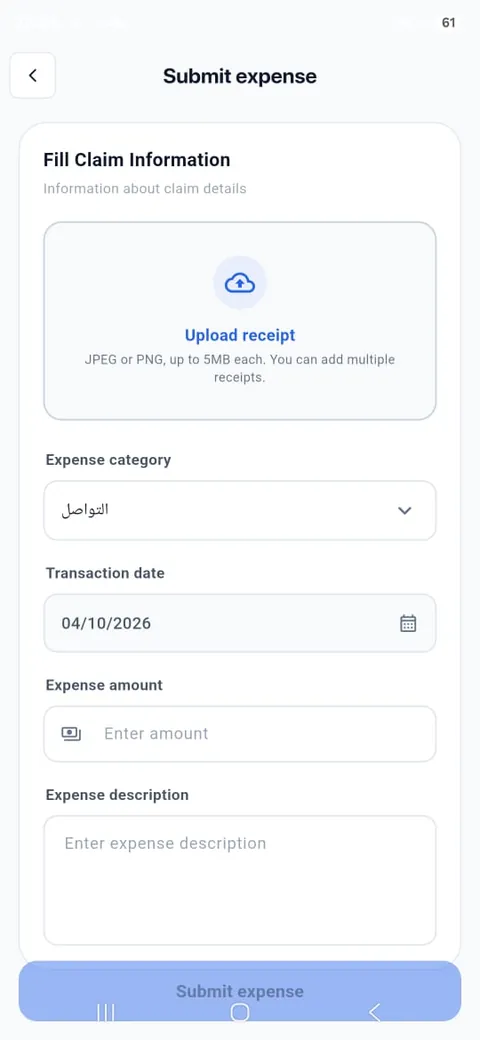
- Tap Upload receipt and take a photo or choose images (JPEG or PNG, up to 5 MB each; you can add several receipts).
- Choose the expense category, the transaction date and the amount, and add a short description.
- Tap Submit expense. You will be notified when it is approved.
- Tap the calendar icon to change the period: this week, this month, the last 3 or 6 months, or a custom range.
Approval requests
Raise any request that needs a manager’s approval, such as a business trip, and follow it until it is approved.
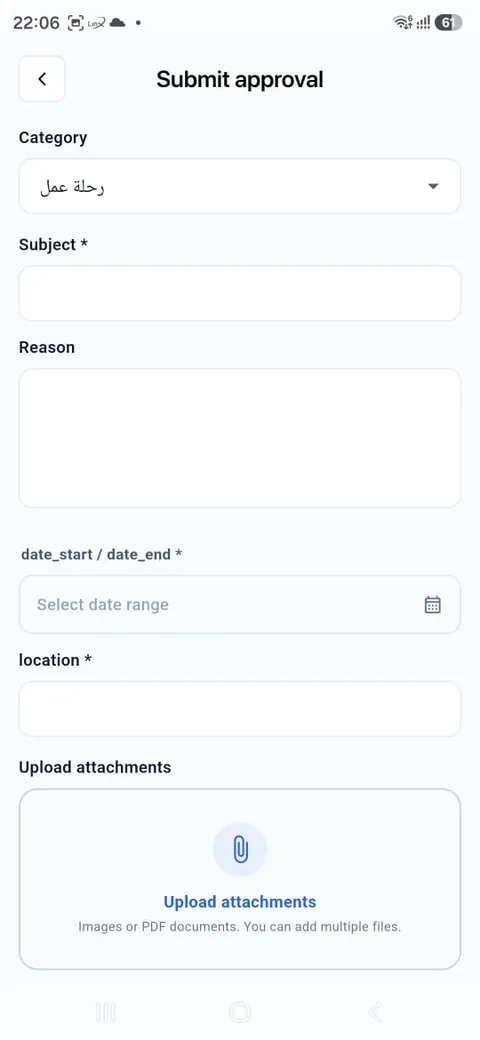
- Tap Submit approval in the Home quick actions, or open More and then Approvals.
- Choose the category, for example Business trip.
- Enter the subject and the reason.
- Pick the date range and enter the location.
- Attach supporting images or PDF documents if needed, then submit.
- You receive a notification at each approval step.
Tasks and timesheets
See the project tasks assigned to you, post updates, move them through their stages and log your time.
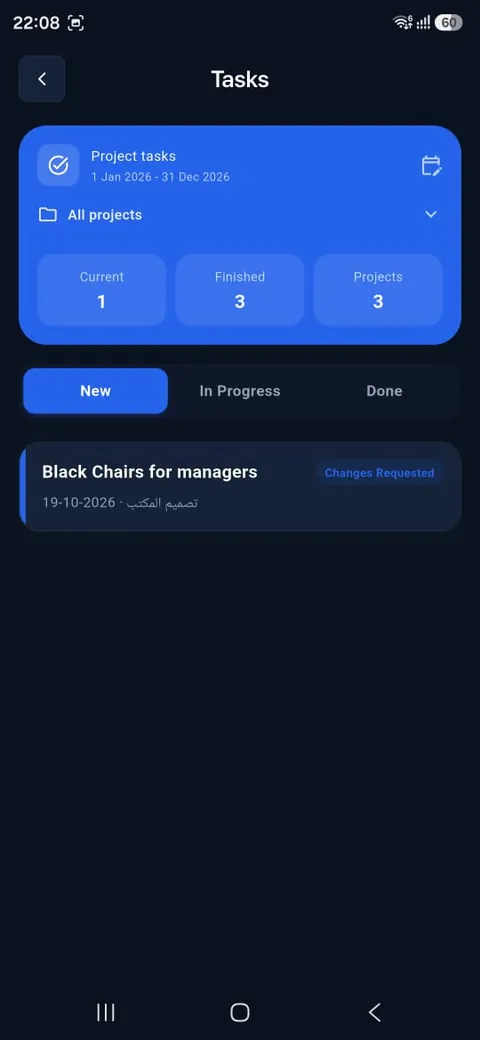
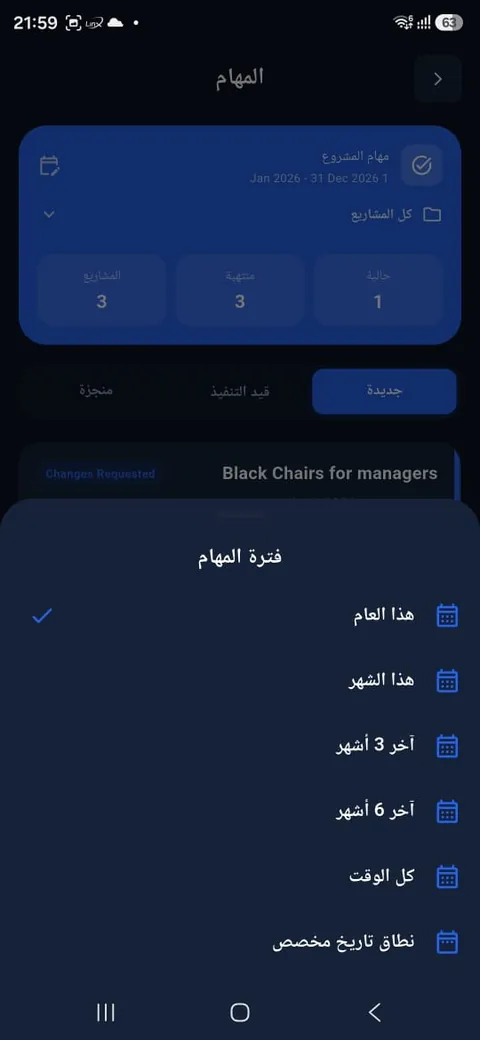
- Open Tasks from Home. The summary card shows your current and finished tasks and the number of projects.
- Filter by project with All projects, and switch between New, In progress and Done.
- Tap the calendar icon to change the period: this year, this month, the last 3 or 6 months, all time or a custom range.
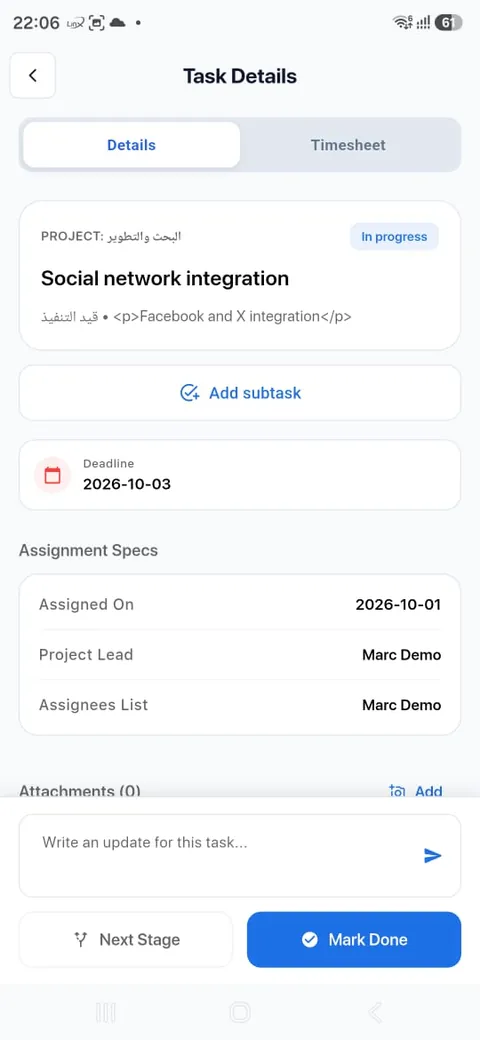
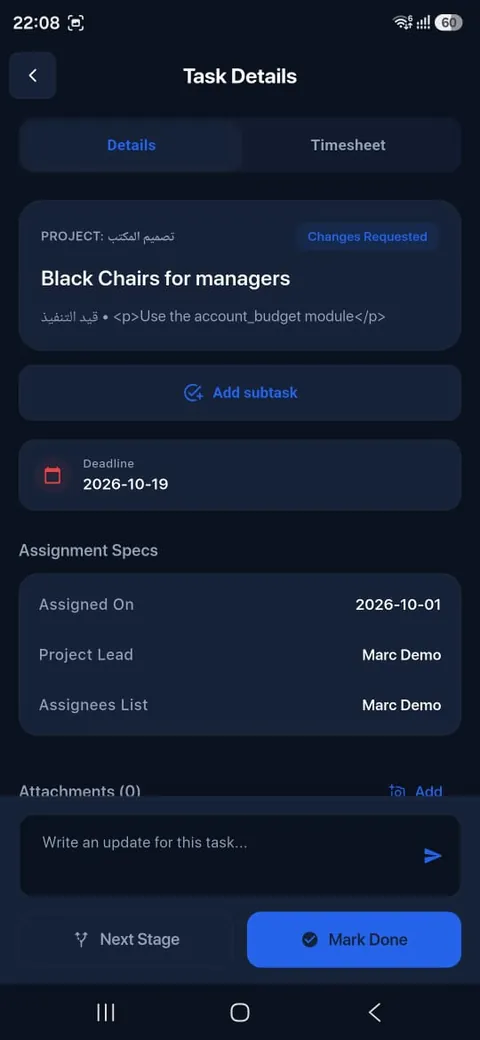
- Tap a task to open its details: project, stage, description, deadline, assignment date, project lead and assignees.
- Add subtasks or attachments, and write an update for the team in the box at the bottom.
- Tap Next stage to move the task forward, or Mark done when it is finished.
- Open the Timesheet tab in the task to log the time you spent on it.
Activities
Activities are the to-dos that colleagues schedule for you in Odoo, such as a call, a document to check or an item to follow up.
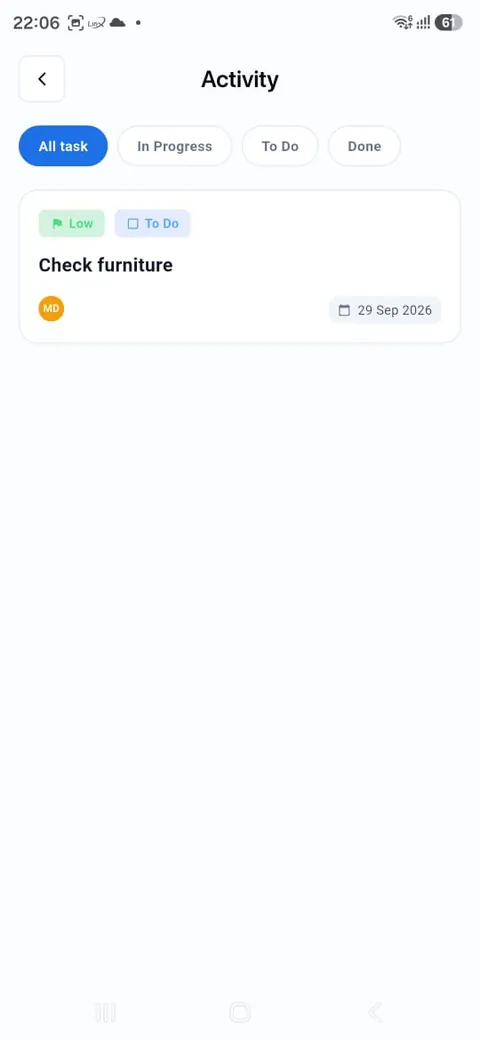
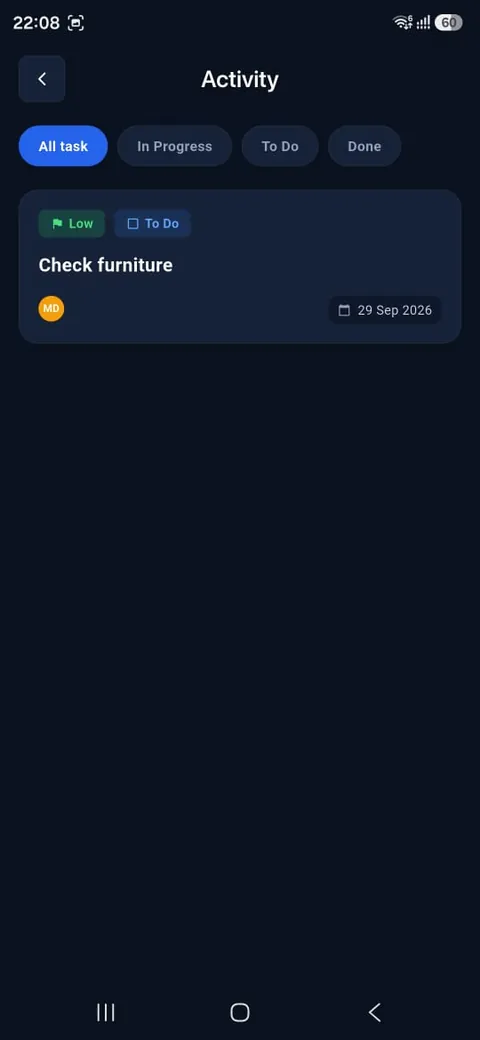
- Open Activities from Home and filter by All tasks, In progress, To do or Done.
- Each activity shows its priority, status and due date.
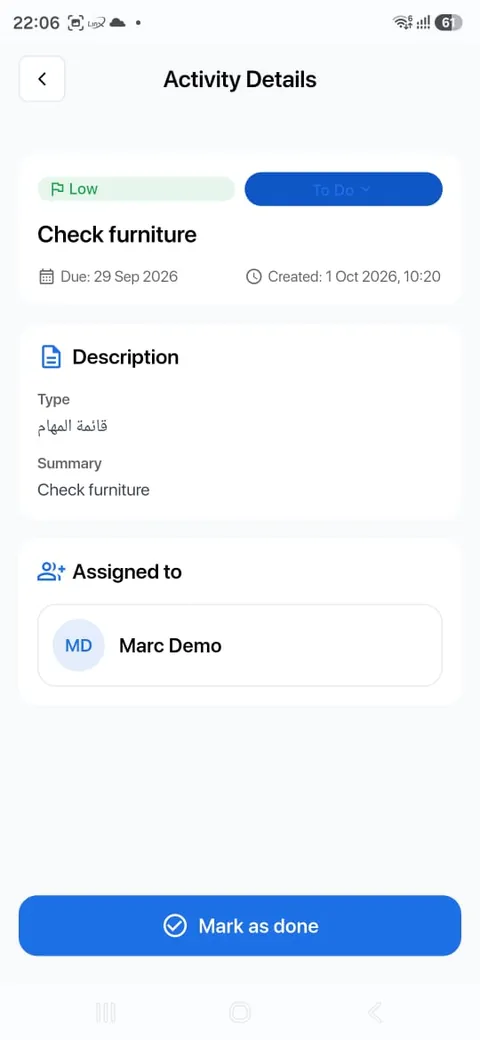
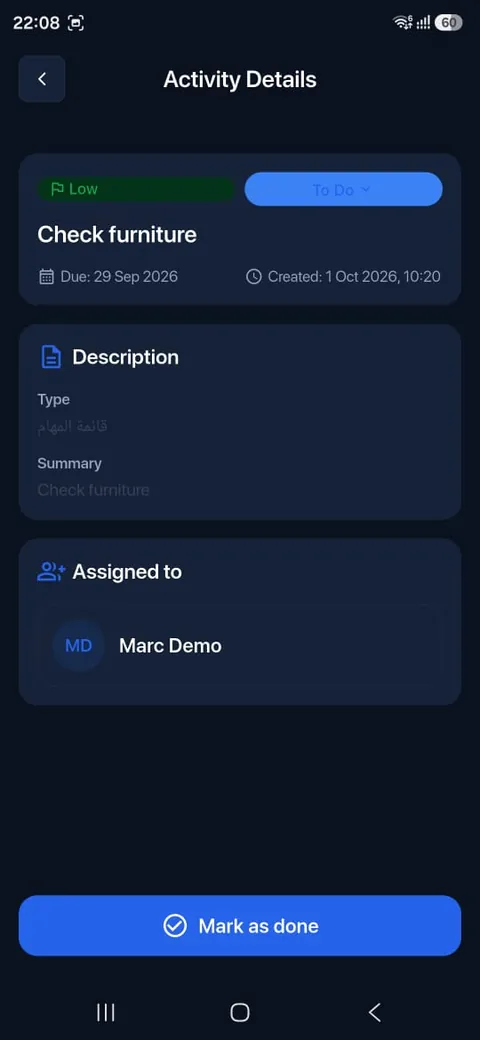
- Tap an activity to see the description, type, summary, due date and who it is assigned to.
- Tap Mark as done when you have completed it.
Meetings
All meetings from your Odoo calendar in one place.
- Upcoming meetings appear on Home. Tap View all, or open More and then Meetings, to see the full list.
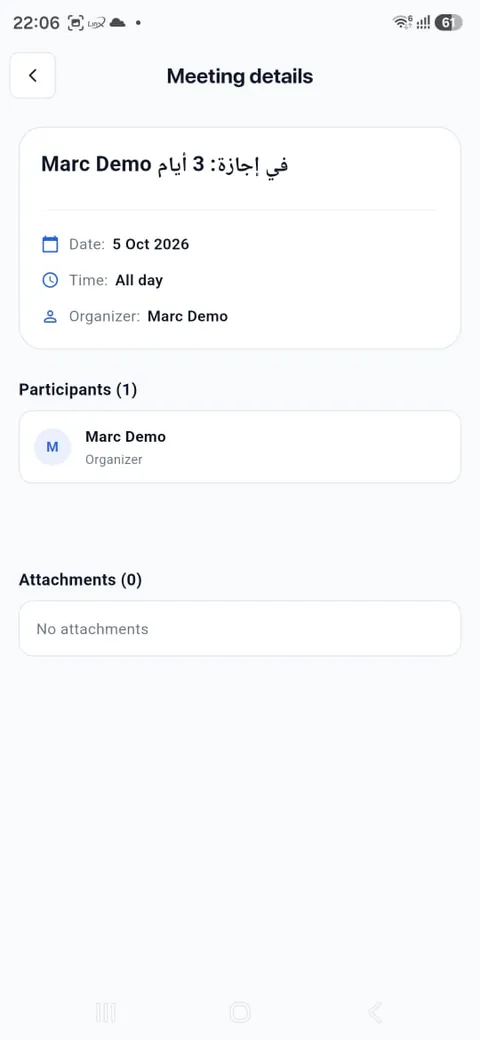
- Tap a meeting to see its date, time, organizer, participants and attachments.
Notifications and messages
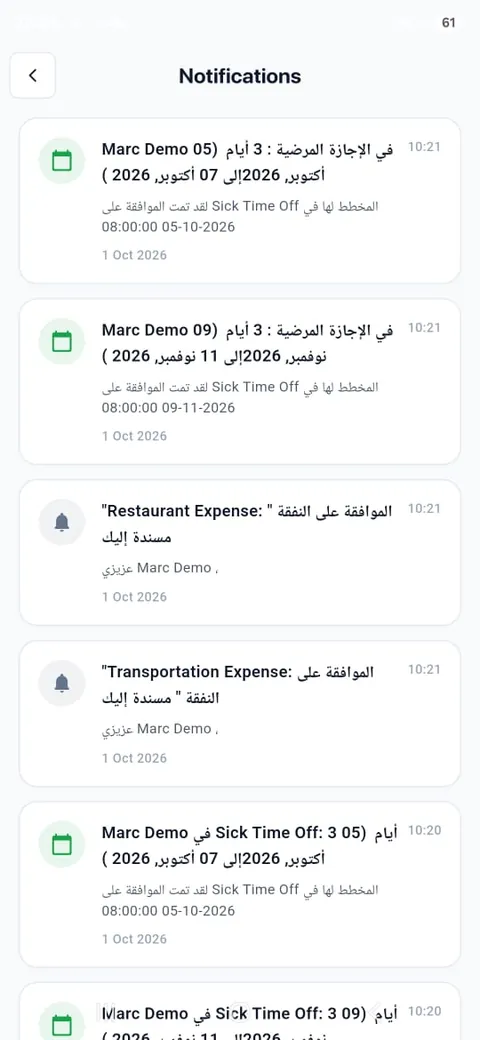
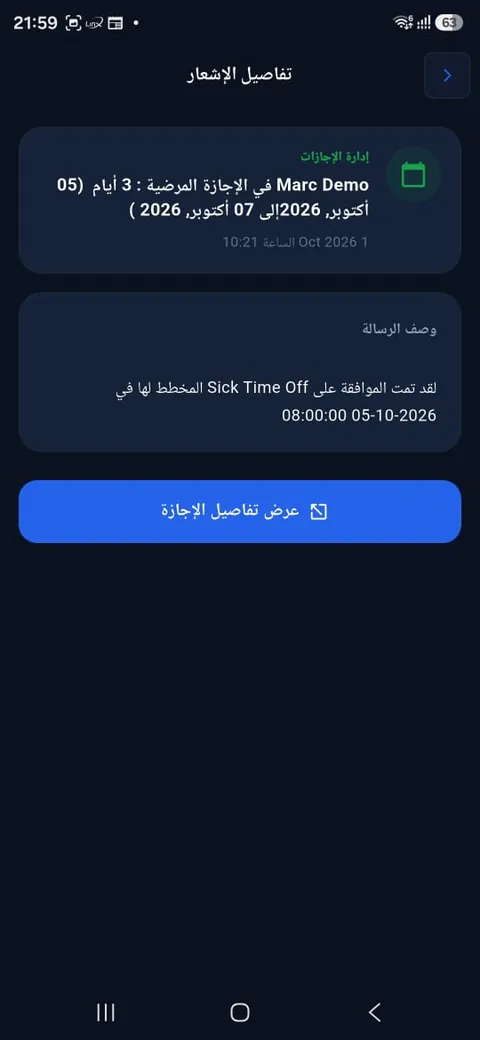
The app tells you the moment something changes, for example when a leave request is approved or an expense is assigned to you.
- Tap the bell icon on Home to open your notifications, newest first.
- Tap a notification to read the full message. Buttons such as View leave details take you straight to the related record.
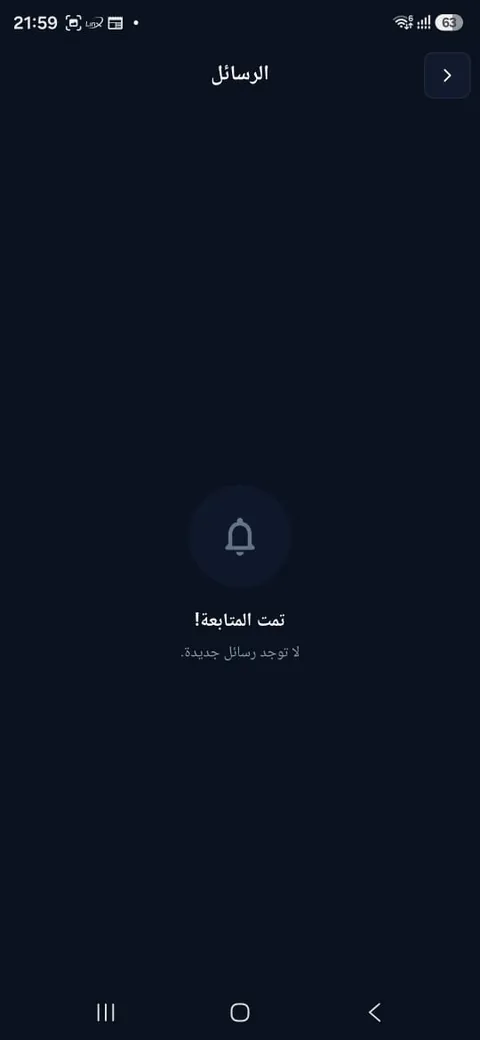
- Tap the chat icon on Home to read your messages.
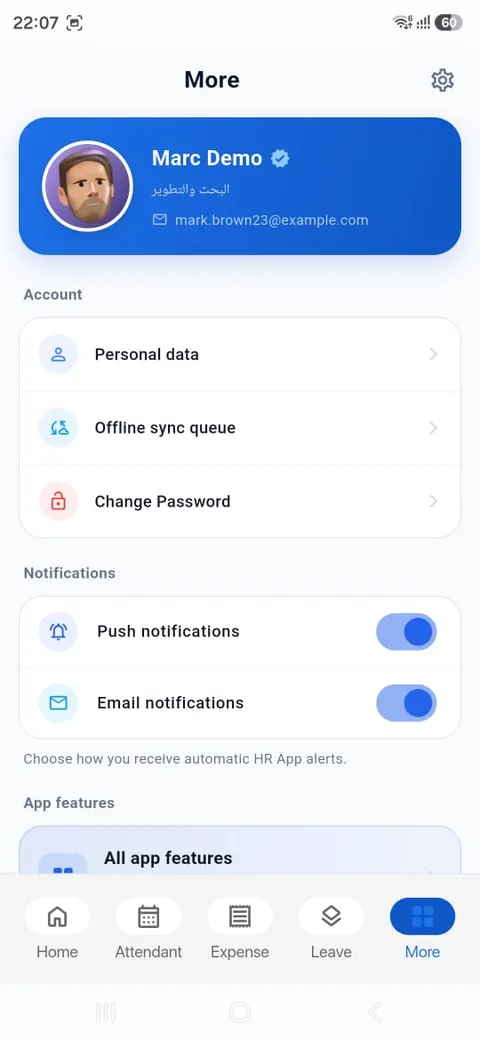
- Choose push notifications, email notifications or both from More.
Profile, payroll and settings
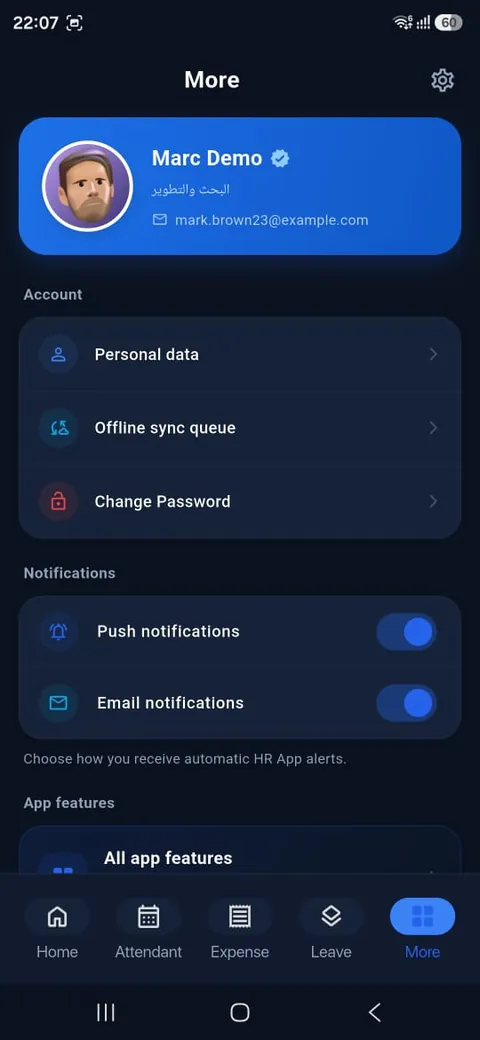
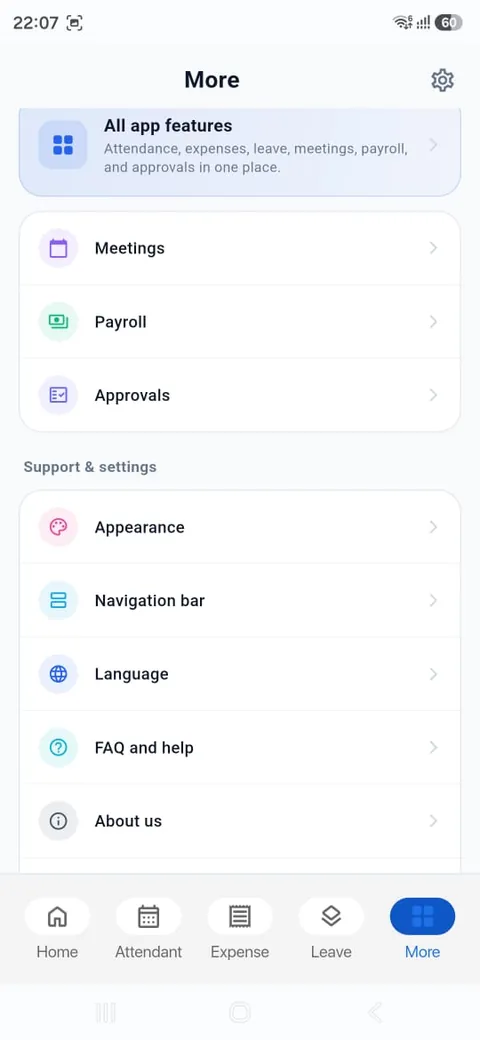
The More tab holds your account, every app feature and your personal preferences.
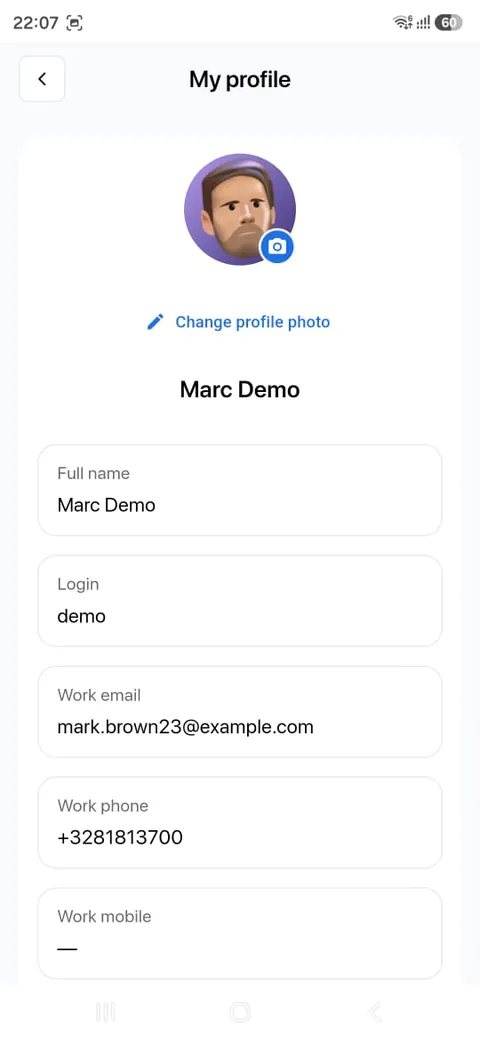
- Personal data shows your profile: full name, login, work email, phone and mobile. Tap Change profile photo to update your picture.
- Offline sync queue lists requests you made without an internet connection. They are sent automatically once you are back online.
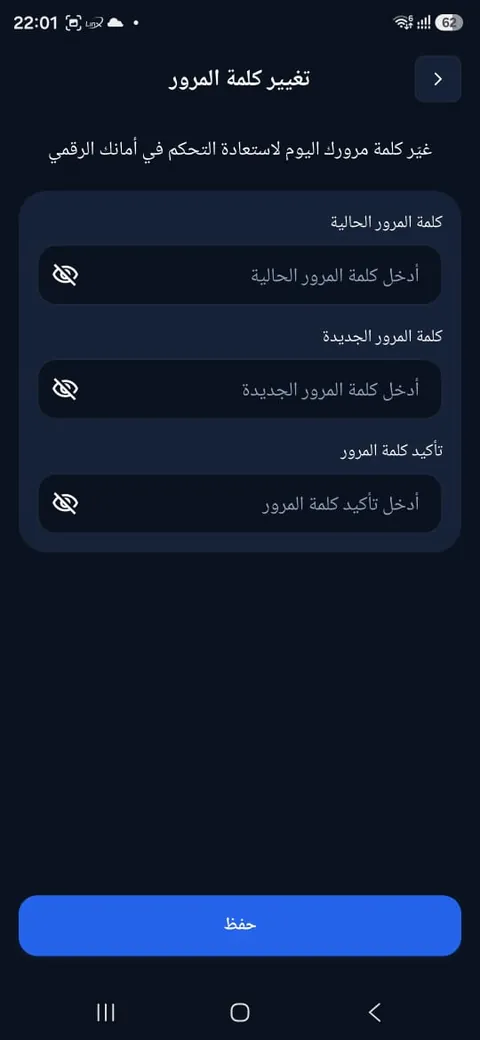
- Change password lets you set a new password after entering the current one.
- Turn push notifications and email notifications on or off.
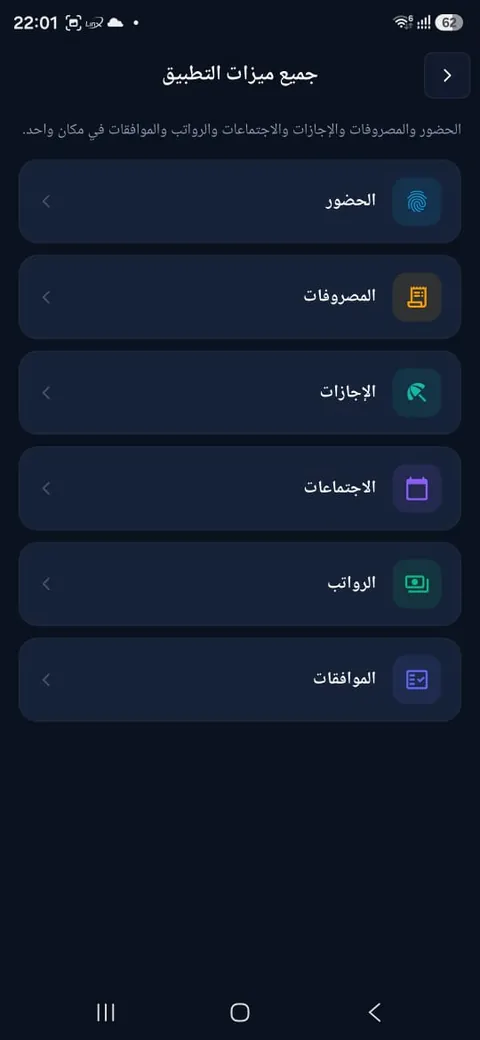
- All app features opens attendance, expenses, leave, meetings, payroll and approvals from one list.
- Payroll shows your monthly payslips and their details.
- Appearance switches between the light and dark theme.
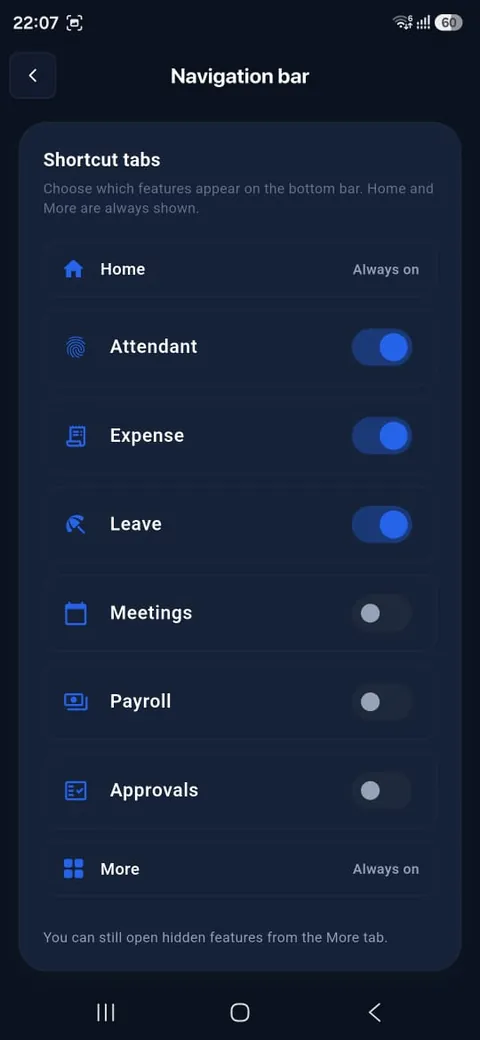
- Navigation bar lets you choose which shortcut tabs appear at the bottom of the screen. Home and More are always shown, and hidden features stay available from More.
- Language switches the app between Arabic and English.
- FAQ and help and About us are at the bottom of the list.
Manager tools
When you sign in with an account that has manager permissions, the app lets you run your team from your phone, on top of every employee feature.
- Approve or refuse leave, expense and approval requests.
- Assign tasks and follow their progress.
- Keep an eye on your team and its pending requests.
Try the manager tools with the demo manager account in the Sign in section.
Back-end setup in Odoo
The app is controlled entirely from Odoo. Your administrator, or our team, does these steps once when you go live.
- Install the connector modules and register the server with your subscription code.
- Create users and link each user to their employee record, with the email and password they will use in the app.
- Grant permissions to decide who is an employee and who is a manager approving their team’s requests.
- Set up attendance by defining work locations and their radius, and turning on face and trusted-device verification if needed.
- Configure the types such as the leave types, expense categories and approval categories shown in the app.
An illustrated walkthrough of each step in Odoo is coming soon. Until then, we are happy to help at info@ptech.sh.
Frequently asked questions
Is the app free?
Downloading is free; using it requires your company to have a Premium HR subscription.
Can I try it before subscribing?
Yes. Use the demo accounts in the Sign in section.
Which devices does it run on?
iPhone, iPad, Android devices, and any browser at hr.ptech.sh.
Where is my data stored?
In your company’s own Odoo. The app connects to it directly.
Does it work offline?
Requests you create offline are kept in the offline sync queue and sent automatically when you are back online.
Why can’t I clock in?
Make sure the app can access your location and that you are inside your work location. If it still fails, contact your HR administrator.
How do I change the language or theme?
Open the More tab and choose Language or Appearance.
Ready to roll out Premium HR?
Contact us for a subscription or a demo, or visit the app page.